Terminal
Open plain shell terminals in a session's git worktree with ⌘J: several tabs, copy and paste, drag-and-drop file paths, and your choice of shell.
Press ⌘J in any session to open a bottom panel of plain shell terminals rooted in that session's git worktree — separate from the wrapped Claude Code agent on the Agent tab.
Open and close the panel
Press ⌘J from any tab to show or hide the bottom terminal panel. The first shell spawns automatically the moment the panel opens, as long as the session has a worktree.
Collapsing the panel hides the terminals but keeps their processes alive — a long-running build or watch keeps going while the panel is closed, and reopening re-attaches you to the full scrollback.
Run multiple shells
The panel is a tab strip, so you can keep several shells open at once:
- Click
+to add a new terminal tab. - Click a tab's name to rename it inline.
- Click the
×on a tab to close that shell.
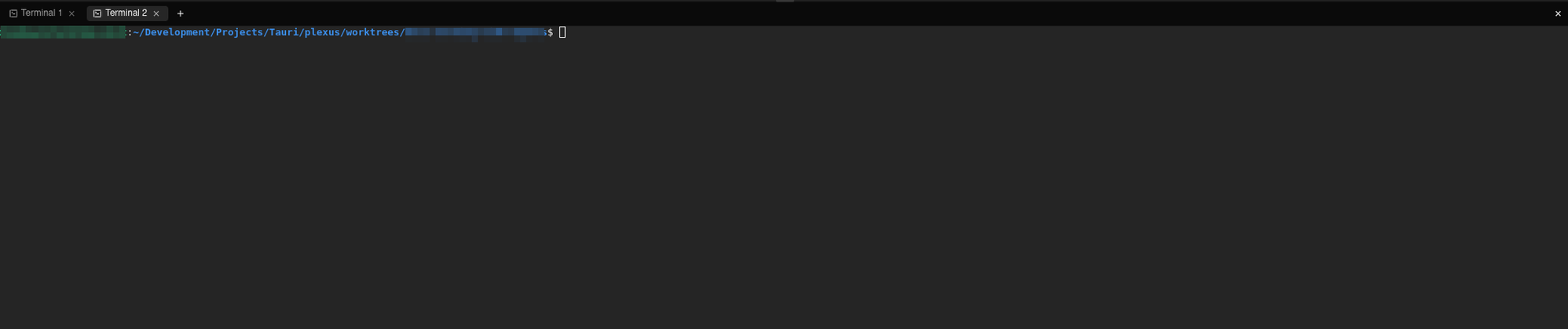
Each tab is an independent login shell with its own scrollback, started in the session's worktree directory. Use them to check git status, run tests, tail logs, or poke at the codebase while the agent works on the Agent tab.
These shells belong to the session, not the agent. Stopping or tearing down a session kills its scratch shells; switching to another session leaves them running so nothing in flight is interrupted.
Give a terminal its own window
Right-click a terminal's tab and choose Open in new window to move that one shell into a separate window — handy for a log you want to keep on a second screen. It keeps running and keeps its scrollback while it moves, and closing the window puts it back in the tab strip. When a whole session moves to its own window, its scratch shells go with it. See Multiple windows.
Copy and paste
Select text with the mouse and copy it with ⌘C, then paste with ⌘V. This works in the scratch shells and in the wrapped agent terminal. In the agent terminal, ⌘V also pastes an image from the clipboard — a screenshot, say — straight into the prompt as an attachment.
Choose which shell to run
The shell Plexus spawns is controlled by Terminal shell (Settings → General), a global setting that applies to your machine rather than per scope. The options depend on your platform:
| Option | Behavior |
|---|---|
| Automatic (default) | Uses $SHELL on macOS/Linux, or cmd.exe on Windows |
| Named platform shells | macOS/Linux: bash, zsh, sh. Windows: cmd.exe, powershell.exe, pwsh.exe |
| Custom path… | Runs the executable you point at with Custom shell path |
To use a shell that isn't listed — fish, say, or Git Bash on Windows — set Terminal shell to Custom path… and put the full path in Custom shell path, such as /usr/bin/fish or C:\Program Files\Git\bin\bash.exe. Both live under Settings → General — see Settings.
Drag files in from your OS
Drag a file or folder from your file manager (Finder, Explorer, Nautilus, and the like) and drop it onto any terminal. Plexus inserts the absolute path at the cursor, shell-quoted only when it needs to be — a plain name stays bare, while a path with spaces or special characters is single-quoted. No newline is added, so you can build up a command (for example cat then drop a file) before pressing Enter. A highlight ring shows which terminal will receive the drop.
This works on the agent terminal too, not just scratch shells.
Theme
Open terminals follow the app theme. Switch between light and dark mode in Settings → Appearance and every shell re-colors in place — no reload, no lost scrollback.