Git workflow
The session Git tab lets you stage, commit, stash and push, and rebase, merge or squash a Claude Code session's branch, with AI-drafted commit messages.
The Git tab is a full git client for the session's worktree: browse history, stage and commit, stash, push, and rebase, merge or squash the branch without leaving Plexus. It is scoped to the one session's worktree and branch; for the repository itself — the commit graph, branch management, and the project's main checkout — use the Project Git client.
Press ⌘4 to open it. The left pane is the commit log; the right pane shows either the commit you selected or the staging panel for uncommitted work. Throughout this page ⌘ is Cmd on macOS and Ctrl on Windows and Linux.
Commit history
The left pane lists the branch's commits newest-first. A divider labeled base marks the merge-base — commits above it are unique to this session's branch, commits below are shared with the base. When history runs deeper than the current page, click Load more to fetch earlier commits.
Click any commit to open its detail view: the full message, author, timestamp, and the changed files. Click a file to see its read-only diff — unified or side-by-side, following the Unified / Split toggle above it, which shares its setting with the Review tab; binary and oversized files show a placeholder instead of hunks. Merge commits are badged as such.
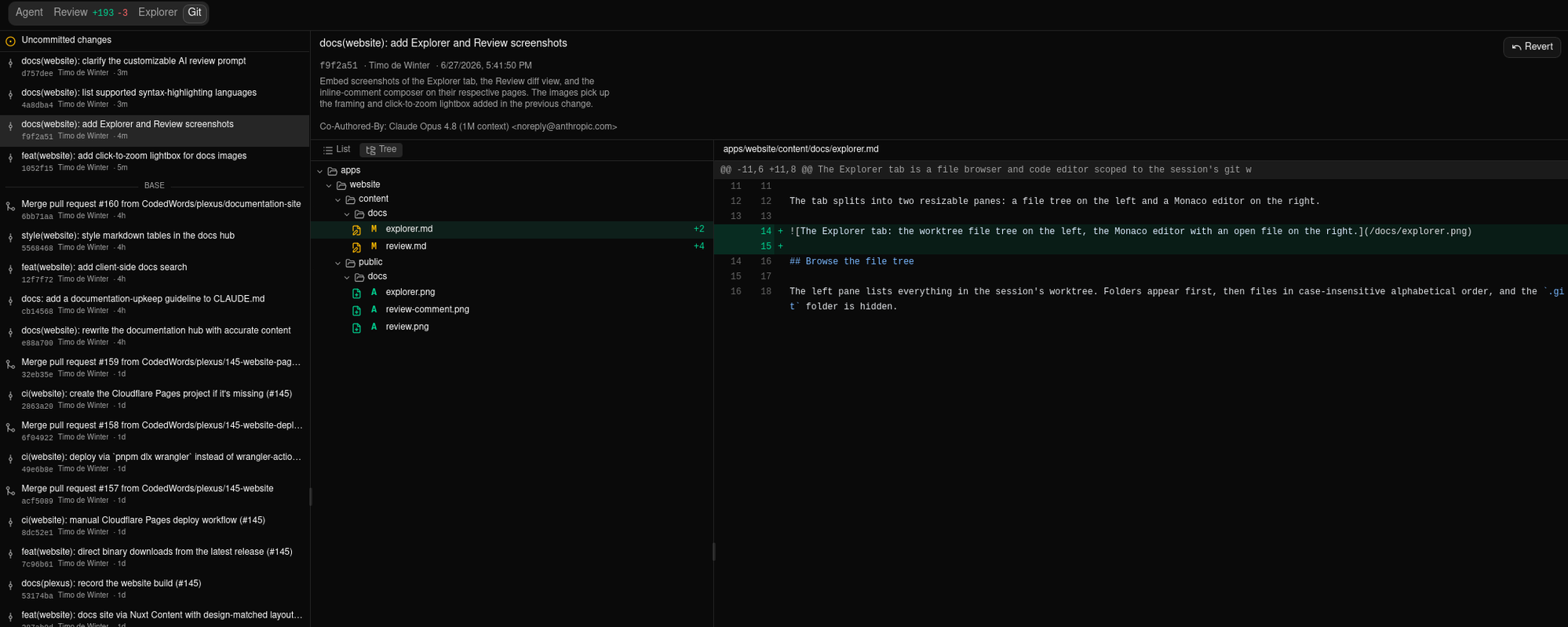
To undo a commit, click Revert in its detail view. Plexus runs git revert (with -m 1 for merge commits) and lands a new revert commit on top — your history stays intact. If the revert conflicts, resolve the markers in the Agent tab and the log refreshes.
Uncommitted changes
The Uncommitted changes node is pinned at the top of the commit list. Click it to open the staging panel, grouped into collapsible Staged, Unstaged, Conflicted, and Stashes sections. Click any staged or unstaged file to view its working-tree diff on the right; untracked files render their full contents as added lines.
Hover a file to reveal a quick stage/unstage icon, or use the section headers' Stage all / Unstage all buttons. Stage all includes untracked files.
Discard changes
To throw away uncommitted edits, right-click a changed file and choose Discard changes…, or select files and use the panel header. Selection works like a file manager: click a file to select just it, Ctrl/Cmd-click to add or remove individual files, and Shift-click to select the range from the last-clicked file. Once at least one file is selected, a Discard (N) button appears next to Stash.
Right-clicking a file that's already part of your selection acts on all of it — the menu entry says which, reading Discard 3 files… — while right-clicking outside the selection selects just that file first. The same menu stages or unstages the one file you clicked, and copies its path.
Discard returns each selected file to its committed state — modified and deleted files revert to the last commit, dropping both staged and unstaged changes. Conflicted files aren't part of the selection; resolve them in the Agent tab instead.
With nothing selected, the header offers Discard all instead: every tracked file goes back to the last commit, and unless you turn the switch off in the dialog, every new file is deleted from disk — including new files you've already staged. Empty folders left behind by those files go too. It refuses while a merge or rebase is in progress; finish or abort that first.
Commit
With files staged, write a message in the composer and click Commit (or press ⌘Enter from the message field). Only staged files are committed; the button stays disabled until something is staged and a title is entered. On success the log and panel refresh.
Click the AI button to draft a message from the staged diff — a concise imperative subject and an optional body explaining the why. Edit both before committing. Tune the drafting instruction with the AI commit message instructions setting (Settings → Git); see Settings.
Stash and push
Stash saves all changes — staged, unstaged, and untracked — onto the stash; saved entries appear under Stashes, where Pop restores one. Click a stash entry to open it: the sidebar becomes the list of files it changed — tracked and untracked alike — and clicking a file shows its diff on the right. The opened stash offers four actions — Apply restores the stashed changes but keeps the entry, Pop restores them and removes the entry, Delete drops the entry without restoring it (after a confirmation), and Close returns to the working-tree view. A conflicting pop keeps the stash intact and surfaces the conflict.
Push sends the branch to origin (non-force, with -u). It is disabled when HEAD is detached or the branch has no name. Git rejects a non-fast-forward push, so if you rebased or squashed after a prior push you'll need to force-push from the command line — Plexus does not offer that by design. It authenticates with your own git credentials, falling back to a connected provider when your machine has none for an https remote. To open a pull request once the branch is pushed, see Pull requests.
Branch operations
Three operations reshape the session branch in place — whichever branch that is: the plexus/… branch Plexus cut for the session, or the existing branch it was started on. Because they rewrite history, each requires two modifiers to prevent accidental fires:
| ⌘4 | Switch to the Git tab |
| ⌘⌥R | Rebase the branch onto its base (linear, no merge commit) |
| ⌘⌥M | Merge the base into the branch (--no-ff merge commit) |
| ⌘⌥S | Squash all commits since the merge-base into one |
| ⌘Enter | Commit staged changes from the composer |
Rebase and merge fetch the base from origin first when it exists remotely, so the session catches up with work that landed after it started. Each operation toasts its result — for example Rebased onto <base> or Already up to date. These reshape the session branch only; they do not integrate your work into the trunk.
If that fetch fails — you're offline, the VPN is down, your machine has no credentials for the remote (and no connected provider that covers it), or the remote doesn't answer within two minutes — the operation is not cancelled. Plexus reshapes onto the last version of the base branch it fetched and adds a warning saying so, so a Already up to date never quietly means couldn't check. To skip the fetch entirely, turn off Fetch the base branch before rebasing or merging (Settings → Git, per project if you like); with it off the reshape uses the copy of the base branch already on your machine and makes no network request at all. See Settings.
When a rebase is worth doing
While a session works, the branch it was cut from keeps moving — and you shouldn't have to run a rebase just to find out whether one was needed. When the base branch has commits this session's branch doesn't, an amber badge — a rebase arrow and a number — appears next to the Git button in the session's header, and the Rebase onto <base> item inside that menu shows the same number.
The number means one specific thing: a rebase onto the base branch would bring in that many commits. It's counted against the very ref the rebase itself uses — origin/<base> when the base exists on your remote, the local <base> branch otherwise — so the badge never points you at a rebase that would turn out to do nothing.
It is a signpost, not a button. Clicking Git just opens the menu, exactly as before: a rebase rewrites history, so starting one stays an explicit choice.
You see no badge at all — not a zero — when there's nothing to bring in, and equally when Plexus can't work the number out: the session has no base branch, a rebase, merge, cherry-pick, or revert is already in progress in its worktree, HEAD is detached, the base branch no longer exists, or the two branches share no history.
For a session stacked on another session, the base is the parent session's branch, and Plexus usually syncs it for you as soon as the parent moves; the badge then only shows up in the gap before that happens, or when Sync stacked sessions is set to Only mark them.
Beyond that, the badge re-checks itself whenever your refs actually change, when a git operation in the session finishes, at the end of an agent turn, and when you return to the Plexus window. To hide it entirely, turn off Suggest a rebase when the base branch moves ahead (Settings → Git); see Settings.
Dirty worktree
If you trigger a rebase or merge with uncommitted changes, a Resolve dirty worktree dialog appears first with three choices:
- Commit & continue — commit the changes (optionally with a message you provide), then run the operation.
- Stash & continue — stash the changes; they stay stashed after the reshape.
- Stash & pop — stash, run the reshape, then attempt to restore the stashed changes.
Once the tree is clean the original operation runs, and any resulting conflicts appear in the conflict dialog.
Related
- Project Git client — the project-level git client: commit graph, branches, and the main checkout.
- Review — read the branch's full diff against its base before you commit or open a PR.
- Pull requests — push the branch and open a GitHub PR.
- Keyboard shortcuts — the full list of rebindable git shortcuts.